EN
Skip to content
← Back to home
The Paddoco crest: a gold P with two horizontal strokes shaped like the rails of a riding fence

The guide

Your next step, simply explained.

Start with your account, then choose what you want to do. This guide works on phones, tablets and computers; in-app Help covers each section in detail.

Open Paddoco

On iPhone, iPad, Android or in a browser, use the same account and access the same data.

Where to begin

Three ways to get started, all available now.

  1. Your yard is already on Paddoco. Find it in the directory and request to join, or wait for an invitation. Once you join, you will find the schedule, facilities, feed and other riders.
  2. Your yard is not here yet, or you do not belong to one. Start on your own straight away: your horses, care records, exercises, friends and tack marketplace work without a yard. You can even register a horse as living at home. If you join a yard later, everything comes with you.
  3. You run a yard. Set up your yard, invite your riders and give each person the right access. What riders create belongs to them; the records needed to run the yard stay with it when they leave.

You can start without a yard and complete your profile later. Keep one account for your horses, riding life and professional activity.

First step

Create your account in five minutes.

  1. Open app.paddoco.com

    In your phone or desktop browser, choose “Create an account” and enter your email address and a password.

  2. Follow the sign-in instructions

    After creating your account, follow the instructions to confirm your address if needed. If you are waiting for an email, check your spam folder too and wait for the stated interval before requesting another email.

  3. Tell us what brings you here

    The first time you open the app, it asks one question: do you ride at a yard, run one or look after horses at home? Answer, or choose “I'll look around first”. You will not be asked again, and you can change your answer in “My account”.

    A short getting-started checklist then appears. It ticks itself off by checking what you have actually done, without asking you to repeat completed steps. Dismiss any step that does not apply, and restore it if you change your mind. Once there is nothing left to do, the list disappears.

  4. Join your yard

    Find your establishment in My yards. Depending on its settings, joining is immediate or requires approval. Check your request status; avoid creating a duplicate listing for the same yard.

    Your yard can also invite you directly . The invitation will be waiting when you open the app. You can accept or decline it; it never joins you automatically.

    You can still get started. Your horses, equipment, exercises, friends and tack marketplace work without a yard, and you can register a horse as living at home. A yard is needed for shared activities in a place: lesson schedules, facility bookings and the yard feed.

  5. Tell us what you do at the yard

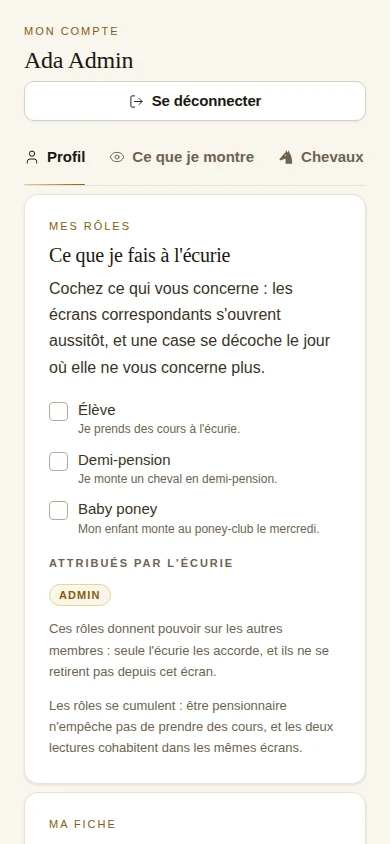
    In “My account”, tick the roles that apply: student, horse sharer, owner or parent of a child who rides. The relevant screens become available straight away. You can have several roles, and untick any that no longer apply.

    Paddoco's My account screen: checkboxes to declare roles such as student, horse sharer and young pony rider, with yard-assigned roles below
    You declare your own activities. Only roles that give you authority over others are assigned by the yard.
  6. Install it on your phone

    On Android, it is on Google Play : a fully installed app where the account you just created works as it is.

    On iPhone and iPad, download Paddoco from the App Store. Sign in with your existing account to find your horses, your yard and your conversations.

Take a look around

What you will find.

The screenshots below use sample data with fictional names and horses. In your account, you will see your own yard.

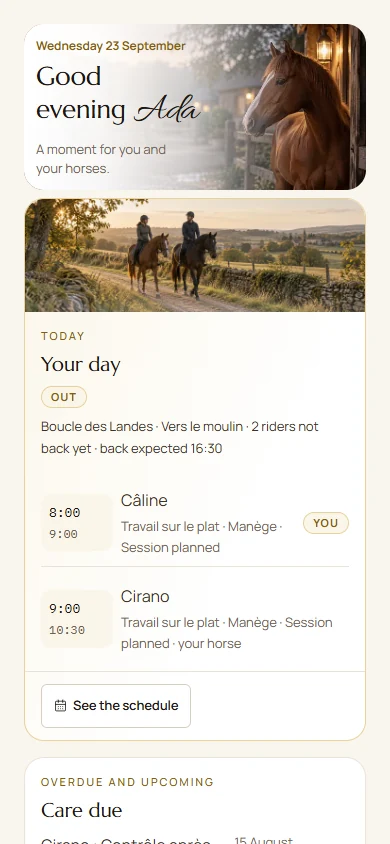
Home: the day and care reminders for Ada, a fictional user.

Home

Home brings together Your day, upcoming activities and relevant requests. Open an activity to view its details. Check the selected yard: its weather and activities depend on that context.

Try this: hide a card you do not use. Home should reflect your life, not ours.

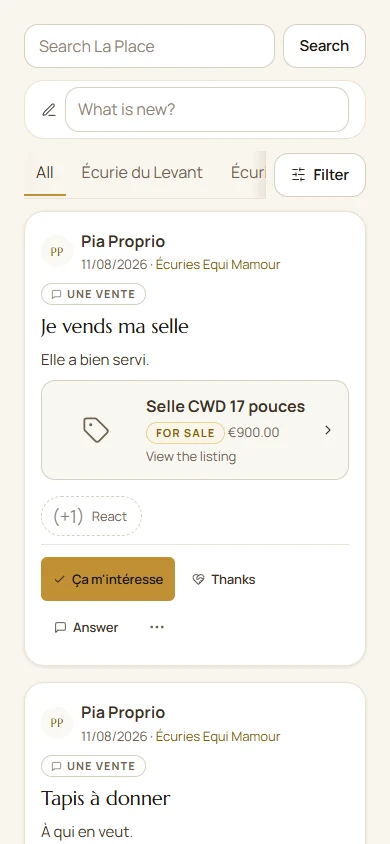
The feed: search, filters and sample posts.

The Square

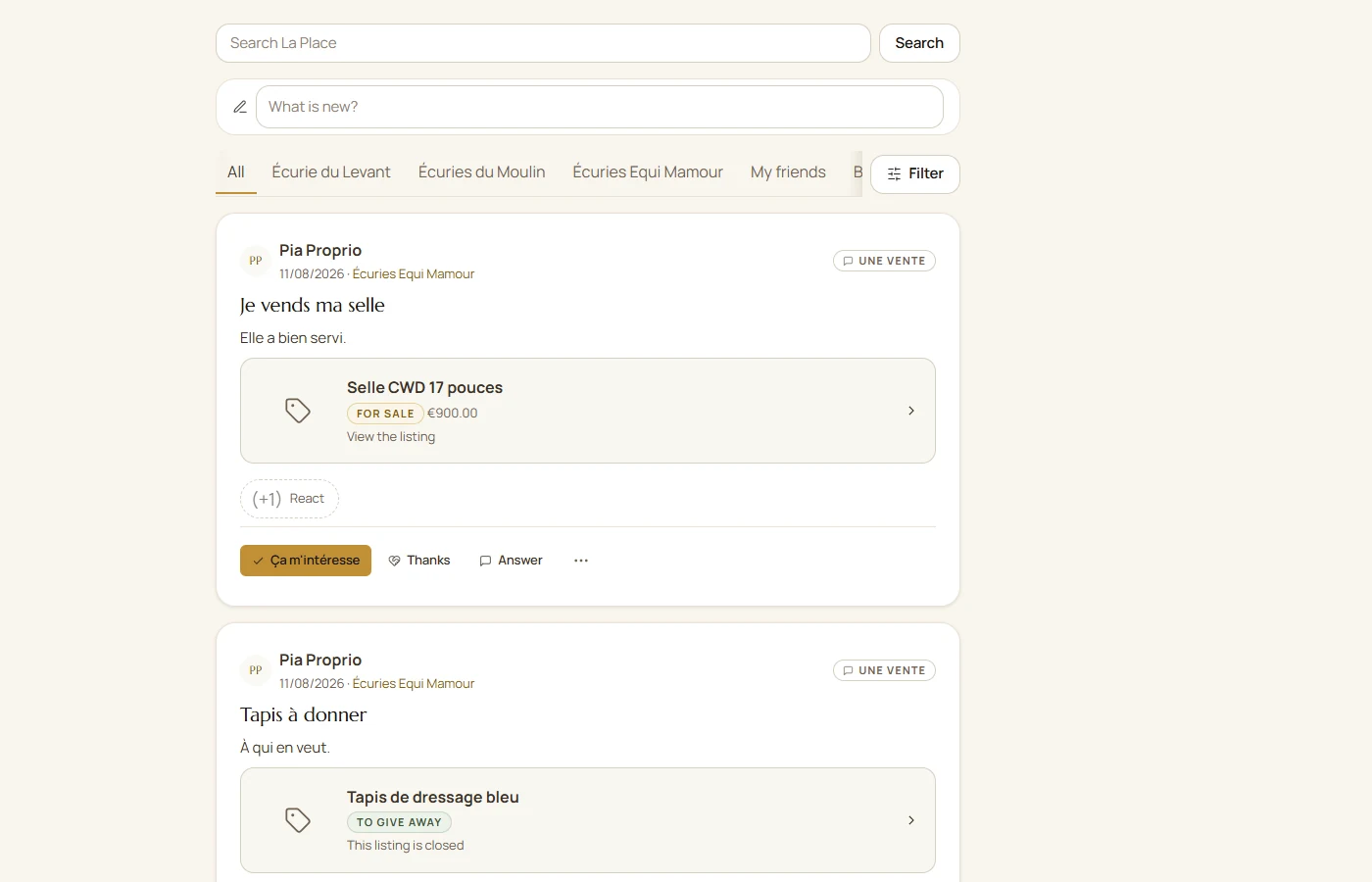
The Square brings together accessible posts. All opens the overview; filters narrow the view. Before posting, choose your audience: yard, friends, group or public, from the available options.

Reactions let you respond to a post. They do not replace a booking or commitment such as I’m coming. For photos and videos, wait for upload completion and check the media status.

Try this: start a poll (“Who's around on Sunday?”) and watch the conversation turn into a ride.

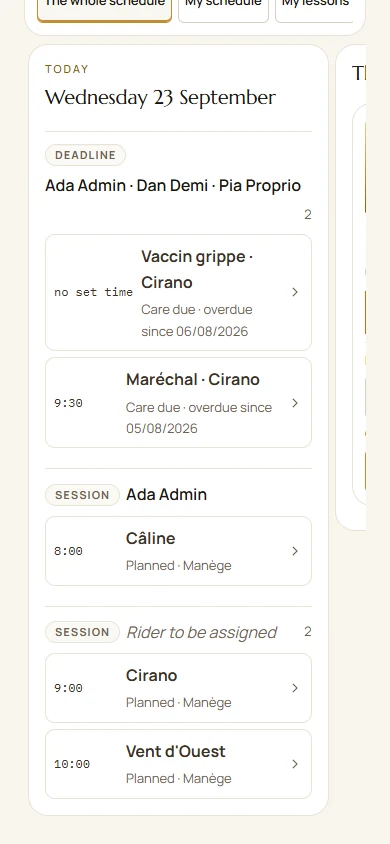
The planner: sessions and activities from the demonstration data.

The schedule

Choose List or Agenda, then the period. Open a lesson to check places and conditions, book or request a club mount. Regular slots can combine an annual list with open places. Personal and team tasks also belong in Planning.

Try this: book your actual lesson for the week and check that everything looks right.

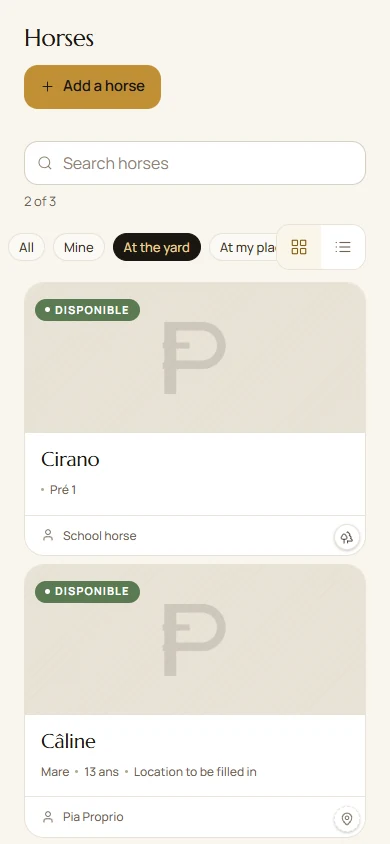
Horses: find and open a record in the demonstration data.

Horses

Each horse opens on their overview : photo, age, where they live and who looks after them. This is what everyone sees. Behind it are tabs for the journal, care, sessions, feed, equipment, competition record, pedigree and location.

Hoof trimming, veterinary care, vaccinations and dental care each have their own record, with photos and visibility adjustable section by section. You decide what the yard can see about your horse and what stays private.

In Feeding, choose the exact product, quantity and unit. A manufacturer’s sheet or manual entry documents its composition. The overview shows known intake and identifies missing information; crude protein is not digestible protein expressed as MADC.

A nickname helps you find a horse by its everyday name. Photos can be cropped, genealogy links parents and offspring, and each section keeps its own permissions.

The Location tab shows the yard map and your horse's paddock, with touch zoom.

Try this: add the next farrier visit. The reminder repeats at the interval you choose.

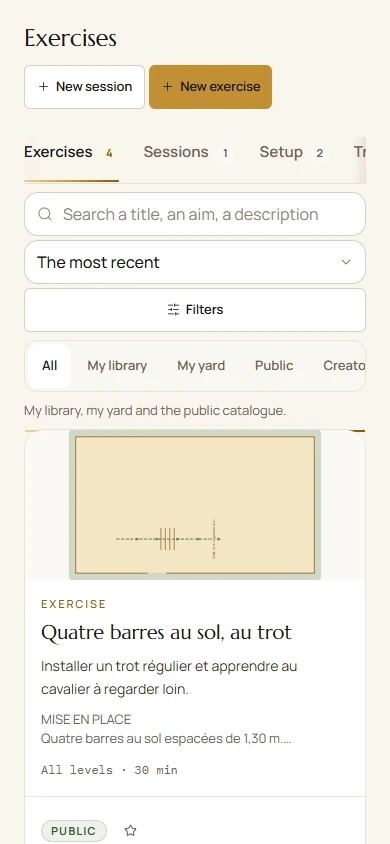
The library: search and exercises from the demonstration data.

The library and design studio

Exercises, sequences, equipment layouts, courses and favourites help prepare sessions. The arena editor lets you draw a layout and instructions for the arena’s dimensions. Check distances and adapt the setup to the horse and rider.

Explore accessible content, add favourites and copy an exercise to adapt it. Your copy does not rewrite the author’s work.

Try this: draw the exercise from your last lesson and share it with your yard.

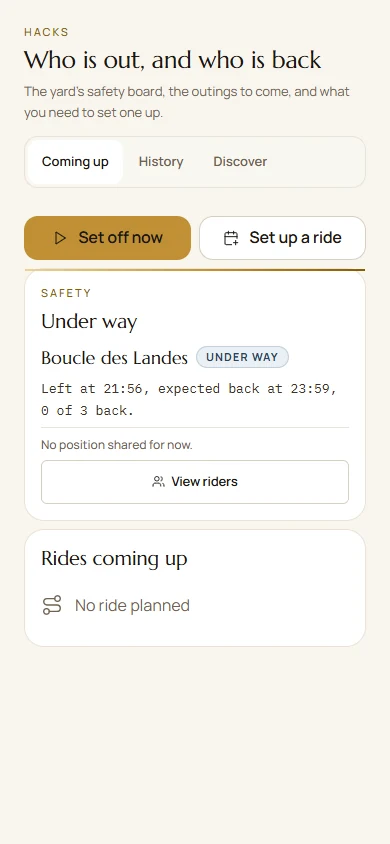
Hacks: find rides and prepare a departure, using fictional data.
Demonstration screens updated on 23 September 2026, with fictional people and data.

Hacking out

See who is out, with which horse, since when and when they expect to return. When you follow a route, the topographic map stays centred on you, with remaining distance, distance off route, distance travelled and a direction arrow. If you leave the route, the screen tells you.

Before leaving, choose route following or recording and check location permissions. If preparing an offline map, wait for confirmation. A browser can stop tracking when the screen locks; the installed app also depends on phone settings.

Try this: add your next ride, save the map offline and mark yourself “Back safely” when you return.

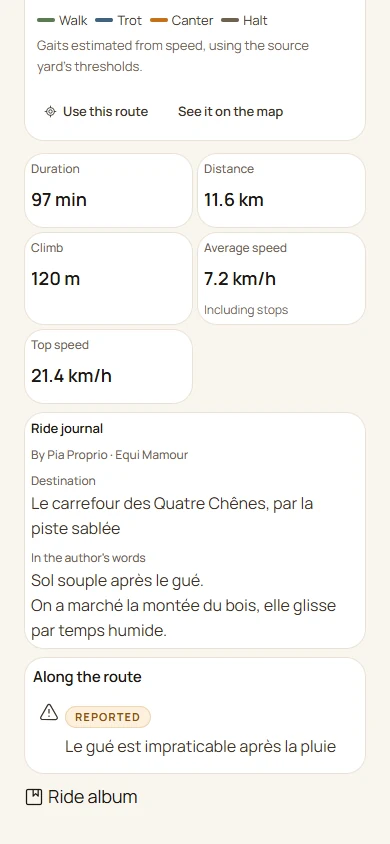
A ride record from the demonstration data.

After your ride

Find the ride in History: a route coloured by pace, duration, distance, elevation and memories. Average speed includes stops. You can record a ride retrospectively. If the film option is offered, prepare a preview and choose an export available on your device.

Choose who sees it: your yard, friends or everyone in “Discover”. A public route is shared in full, including its start and finish, and the screen reminds you when you select that option. Your heart rate stays private.

Try this: share a route with a friend at another yard so they can follow it.

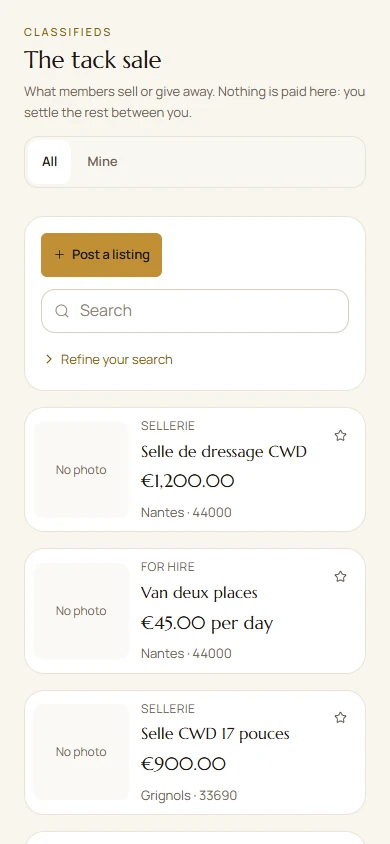
The tack market: fictional listings and search.

The tack marketplace

Items members sell or give away, within your yard or across the platform, with a distance filter. No payments are made here: you arrange the details between yourselves, using messaging to get in touch without sharing your phone number.

There is also equipment lending: who borrowed what, and when.

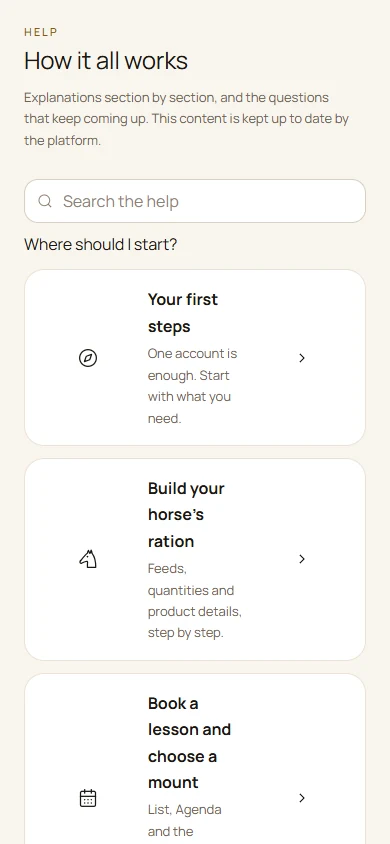
Help: search, starting points and chapters.

Help within the app

Choose a starting point, open a chapter or search with several words. Each tutorial explains the steps. Shared links open the article directly; Report a problem lets you request a correction.

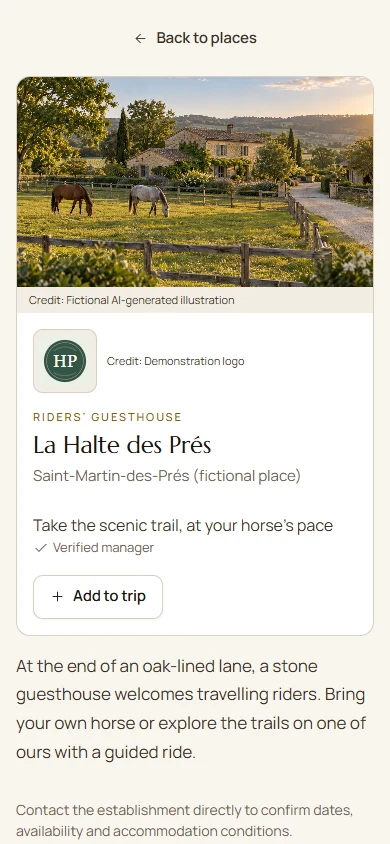
Top of the same fictional tourism listing on a phone.
Fictional example: an AI-generated image and demonstration details.

Tourism: plan an adventure and find stopovers

Find places that welcome riders, horses and trailers. Plan your days, reuse routes, share your trip and revisit recorded rides. Contact through Paddoco becomes available when the place’s manager is verified.

Do you welcome travelling riders? Claim your existing listing or list your place, then personalise its cover photo, logo and gallery. The enhanced showcase is free during launch.

View the Tourism guide and populated preview
The feed on a computer, with fictional posts.
The feed on a computer. The layout adapts to the available width. Fictional example.

Everyday actions

One need, a few steps.

Feeding: start with what is actually fed

Build your horse’s ration
  1. Open Horses, your horse's record, then Feeding. Check its weight and feeding arrangements.
  2. Add a feed. Search for the brand and exact name, then check the range on its product sheet: two products from one brand are not interchangeable.
  3. Enter the quantity, unit and meal requested by the form. Weigh your measure if you use a volume or scoop whose weight is unknown.
  4. Save and review the ration lines before reading the overview.

A label such as mineral supplement does not identify a composition. For Oligovit and other ranges, choose the actual product you feed and compare its sheet with the packaging.

At pasture, grass intake is not known automatically. Displayed values may therefore not cover the whole day's intake.

Enter a feed missing from the catalogue
  1. In Feeding, choose Enter my feed, or the manual entry offered in the product picker.
  2. Enter the exact name, brand and reference. Use the label, the manufacturer's technical sheet or your forage analysis.
  3. Copy values with their units and basis: per kilogram as fed or of dry matter, as stated by the source. Enter dry matter when the calculation needs it.
  4. Save the sheet, select this product and enter the amount fed.

Leave unknown values blank. Zero means that the content is genuinely zero. Do not convert a crude protein percentage into MADC: these are different measurements.

This sheet is for your horse; it does not replace the shared manufacturer's sheet for other users.

Add or edit a supplement course
  1. In Feeding, open supplement courses and choose Add a course, or open an existing course to edit it.
  2. Find the product by brand and name. Check its sheet; if it is missing, use manual entry.
  3. Enter dates and feeding instructions. To include the course in intake, also enter a numeric dose and a usable unit.
  4. Save, then check the product, dates and dose on the course.

A free-text instruction such as “one scoop” can help with daily feeding but cannot support a calculation if the scoop's weight is unknown. A course outside its dates or without usable data should not be interpreted as zero intake.

Follow the manufacturer's and your horse's professional adviser's instructions. The app does not invent a dose suited to its health.

Understand the nutritional overview

The overview compares recorded intake with your horse's estimated needs. This calculation system expresses energy in UFC and digestible protein in MADC.

  1. Read the calculated intake: it comes from usable feeds and quantities, including current supplement courses with a numeric dose.
  2. If a value is partial, open the details. The feed and missing information are named; complete its sheet or quantity.
  3. Compare intake with needs only when the required information is known. Needs depend on factors including weight and the horse's circumstances.

Crude protein and MADC are not interchangeable. The protein percentage on a bag alone cannot determine digestible protein. Missing MADC must not be invented.

A partial total is neither zero nor evidence of a deficiency. Some forage or grass may be missing from the calculation. Use this overview with the professional who looks after your horse; it does not replace their advice.

Planning: choose, book and follow

Book a lesson and choose a mount
  1. Open Planning. Choose List or Agenda, then the period you want.
  2. Open the lesson to read its time, places, participants and booking conditions.
  3. Book if a place is offered. A regular slot can combine an annual list with bookings for remaining places.
  4. When a mount choice is offered, select your horse or request a club mount. The team remains responsible for allocation.

A full lesson may offer a waiting list. Always check the displayed status after submitting your request.

Authorised people can add dependants without accounts. An annual booking and confirmed attendance are different records.

Organise planning tasks
  1. In Planning, open the add-activity action and choose a task.
  2. Give it a clear title and enter the requested dates.
  3. Choose the scope and assignment available with your permissions: personal or for the team.
  4. Save. Open the task in Planning to view it, edit it or record progress.

For recurring lessons, use the slot or series actions. Deleting one session and stopping a series are different actions: read the displayed scope before confirming.

Hacks: prepare, depart and find your ride

Prepare a hack and record your return
  1. In Hacks, prepare your ride and participants, or open the ride you have joined.
  2. Before leaving, choose whether to follow a route or record your own. Check location permissions and the location-sharing choice for your participation.
  3. If preparing an offline map, wait for confirmation of the downloaded areas. Not every map or feature is available offline.
  4. Start the ride. When back, finish it and check the confirmation of your return on its record.

In an installed app, tracking also depends on phone permissions and settings. In a browser, tracking can stop when the screen locks or the app moves into the background.

The safety board helps follow a ride; it is not an emergency service. If sending fails, keep the ride and use the retry offered.

Find and share a completed ride
  1. In Hacks, open History and your ride. For an untracked ride, use the retrospective entry offered.
  2. View the route and analysis. Colours show estimated paces; average speed uses the total duration, including stops.
  3. Add useful memories and choose visibility before sharing a route or photos.
  4. If Create a film is offered, prepare the preview and use the export actions available on your device. Publishing to The Square is confirmed separately.

A public route may reveal its start and end points. Review it before making it public. Film-sharing options depend on the installed version and the apps on your phone.

Horse shares: sharing a horse

Find or offer a horse share
  1. Open Horse shares in the menu. The French label Pensions/DP includes demi-pension and other sharing arrangements.
  2. Use filters and location to find a suitable offer.
  3. Open the listing to read the terms, horse details and contact information.
  4. Discuss it with the person before committing. An agreement and a link to the horse's record are separate steps.

Want to offer your horse? Use the offer action available with your permissions and explain the terms. A listing does not automatically grant access to the horse's data.

In the app, open Help and search for a word such as supplement, protein, mount or horse share. Articles can be shared using their address.

And more

Also on the menu.

In Competitions, view the published programme and results. The organiser can prepare the programme, then choose Print / PDF to share it or display it at the yard.

Being open about it

What is not ready yet.

You will find out anyway. Better here than at the wrong moment.

A problem or an idea

How to reach us.

A blocked process, unclear information or an idea: tell us the context so we can help.

From the app

In Help, choose Report a problem. Give the screen, your action and what happened. This sends feedback to the team without publishing it on the feed.

By email

For anything private or that needs a screenshot.

Get in touch

In person

If we meet at a competition or a yard. This works too, but feel free to remind us: something mentioned between two stables is easily forgotten.

What helps most, in three lines: what you were doing, what you expected and what happened instead. Include the screen name if you know it.

Next step

What about the phone app?

Paddoco is available on Google Play for Android and on the App Store for iPhone and iPad. Sign in with your existing account: your data is already there.

Download on Google Play Download on the App Store

You can also use app.paddoco.com in your browser, with the same account.

Your data

What we do with it, in four points.

See the details in the privacy policy, written to be understood, and on the page Delete my account.

Guide checked on 23 September 2026. Available actions depend on your permissions and installed version.